Drag and drop is the fastest way to add an image to a conversation.
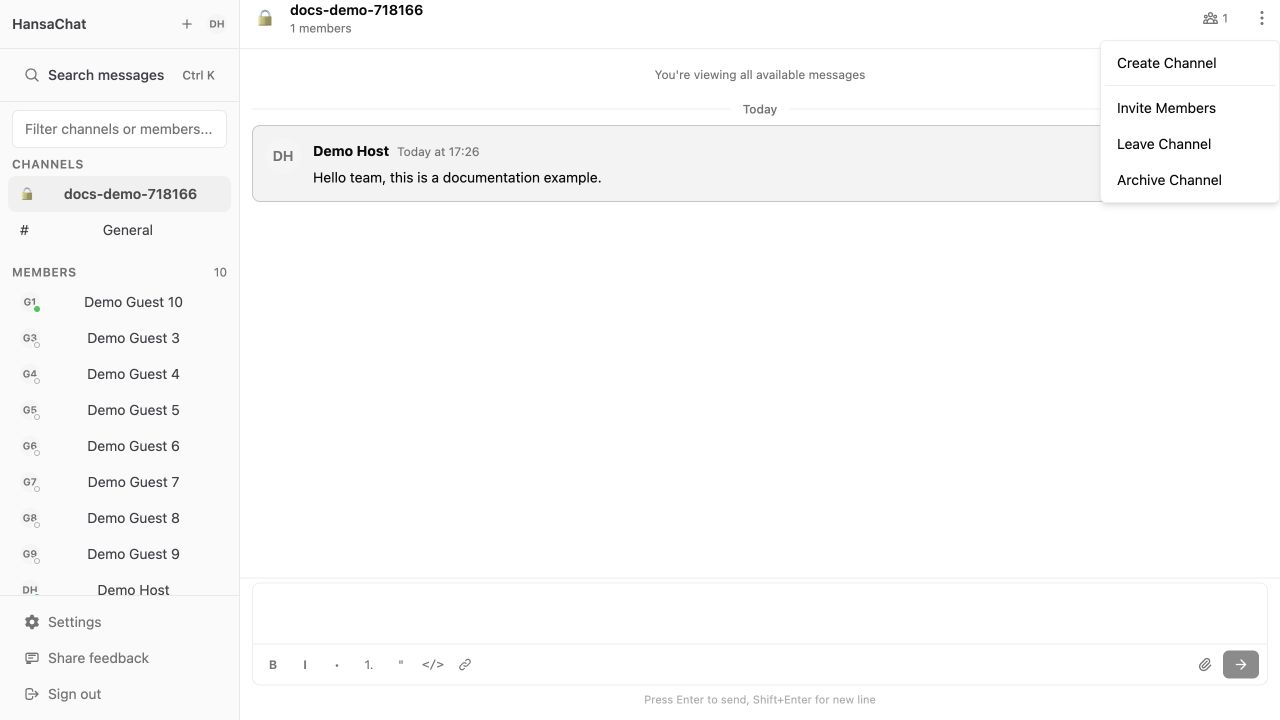
Steps
- Open the channel or direct message.
- Drag an image from your computer.
- Drop it onto the message composer.
- Wait for the upload preview or attachment to appear.
- Send the message.
When to use drag and drop
Use drag and drop for screenshots, design previews, quick visual notes, and images you already have open in Finder or File Explorer.
If drag and drop does not work in your browser, use the Attach files and images button instead.