Audio and video calls in direct messages
Use a direct message when you want to call one person. Direct messages have separate buttons for starting an audio call or starting a video call.
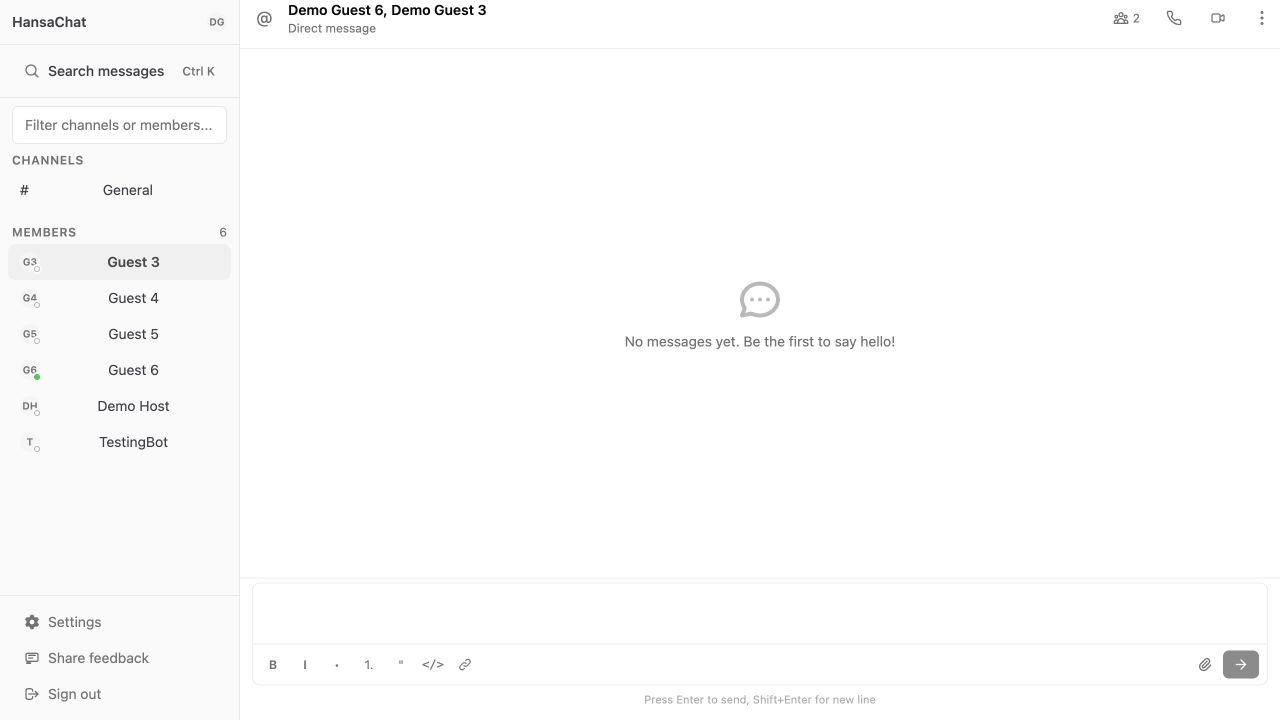
Start a 1:1 audio call
- Select the person in the Members list.
- Choose Start audio call in the conversation header.
- Allow microphone access if your browser asks for it.
When the call connects, HansaChat shows the call panel in the lower-right corner.
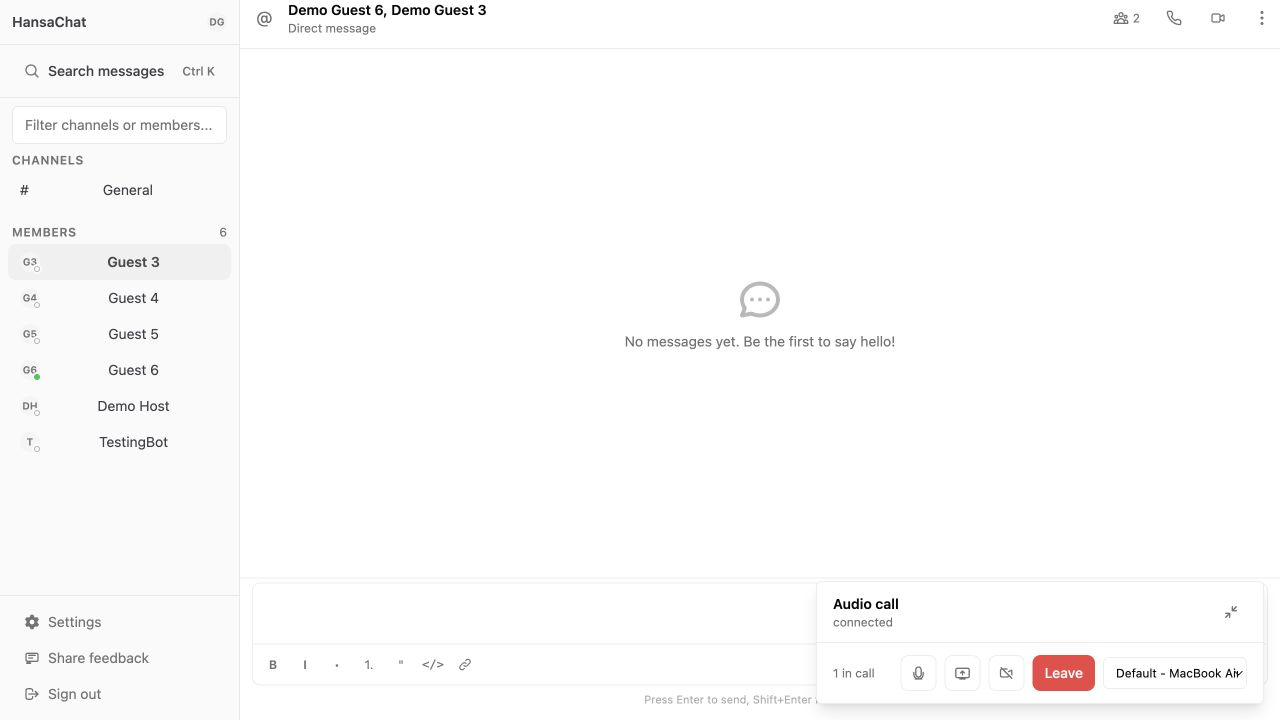
Start a 1:1 video call
- Open the direct message with the person you want to call.
- Choose Start video call.
- Allow camera and microphone access if your browser asks for it.
The call panel shows when the video call is connected.
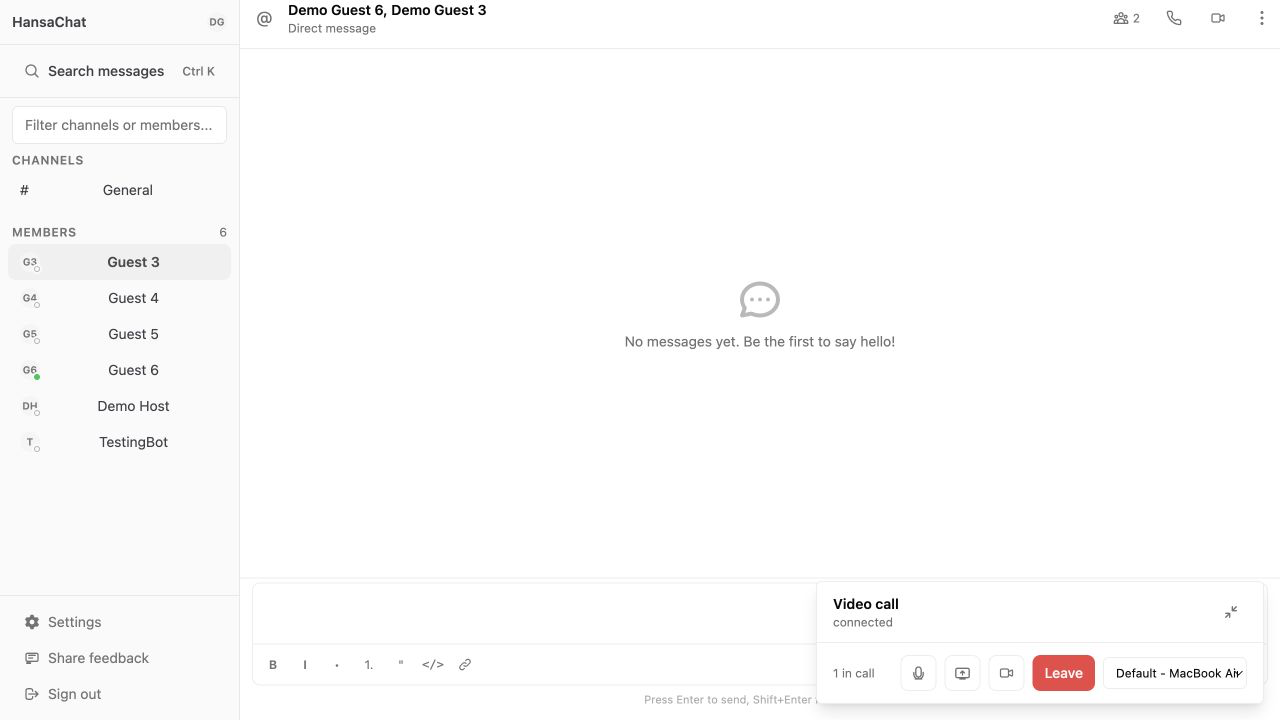
Use call controls
During a call, use the controls in the call panel:
- Mute microphone turns your microphone on or off.
- Share screen starts screen sharing.
- Turn camera on or Turn camera off controls your video.
- Expand call opens a larger call view.
- Leave ends the call for you.
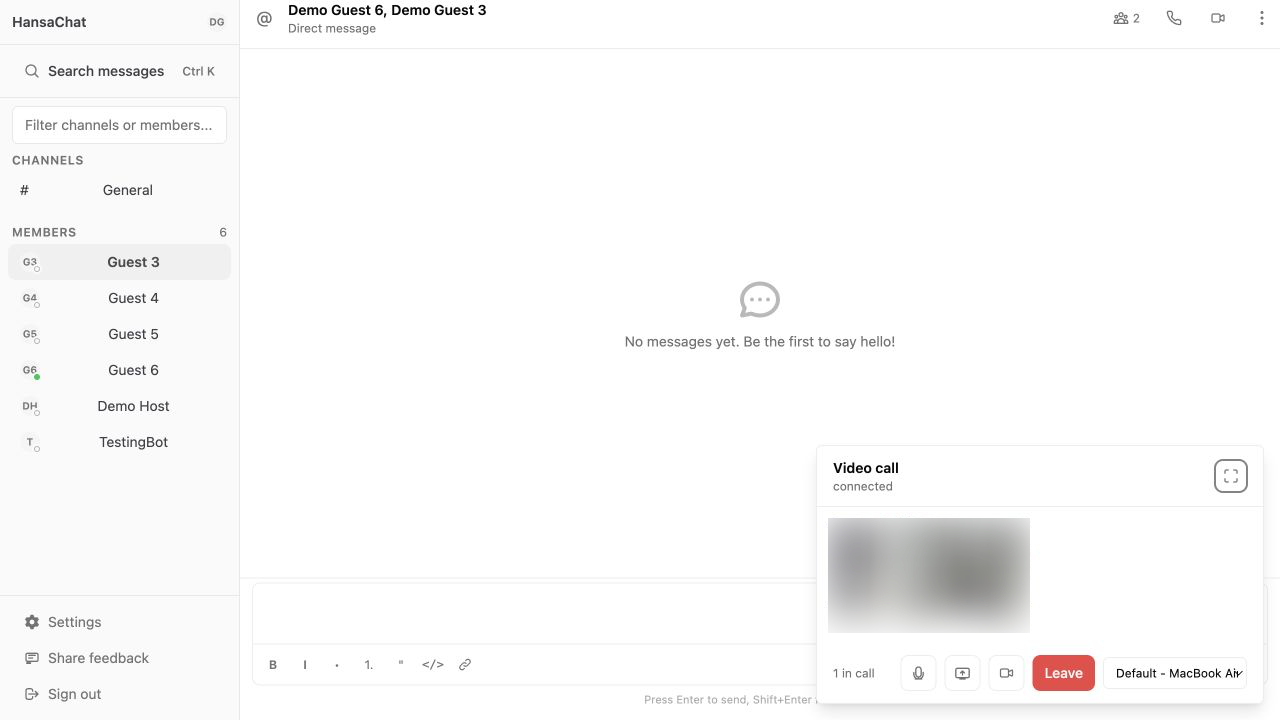
Switch from audio to video
If you started with audio, choose Turn camera on to add video without leaving the call.