Audio and video calls in channels
Use a channel call when several people in the channel should be able to join the same conversation. Channel calls are useful for quick team syncs, project discussions, and screen sharing.
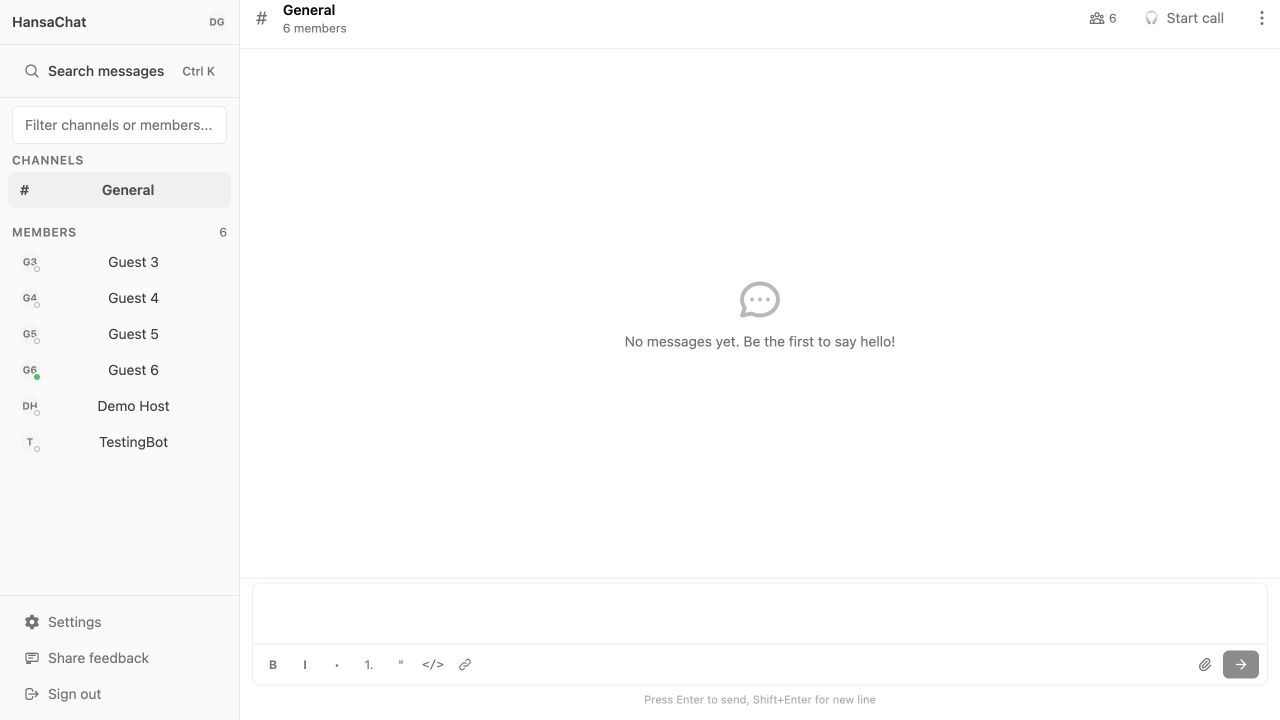
Start a channel call
- Open the channel.
- Choose Start call in the channel header.
- Allow microphone access if your browser asks for it.
After the call starts, the channel shows that a call is in progress. Other channel members can join from the same channel header.
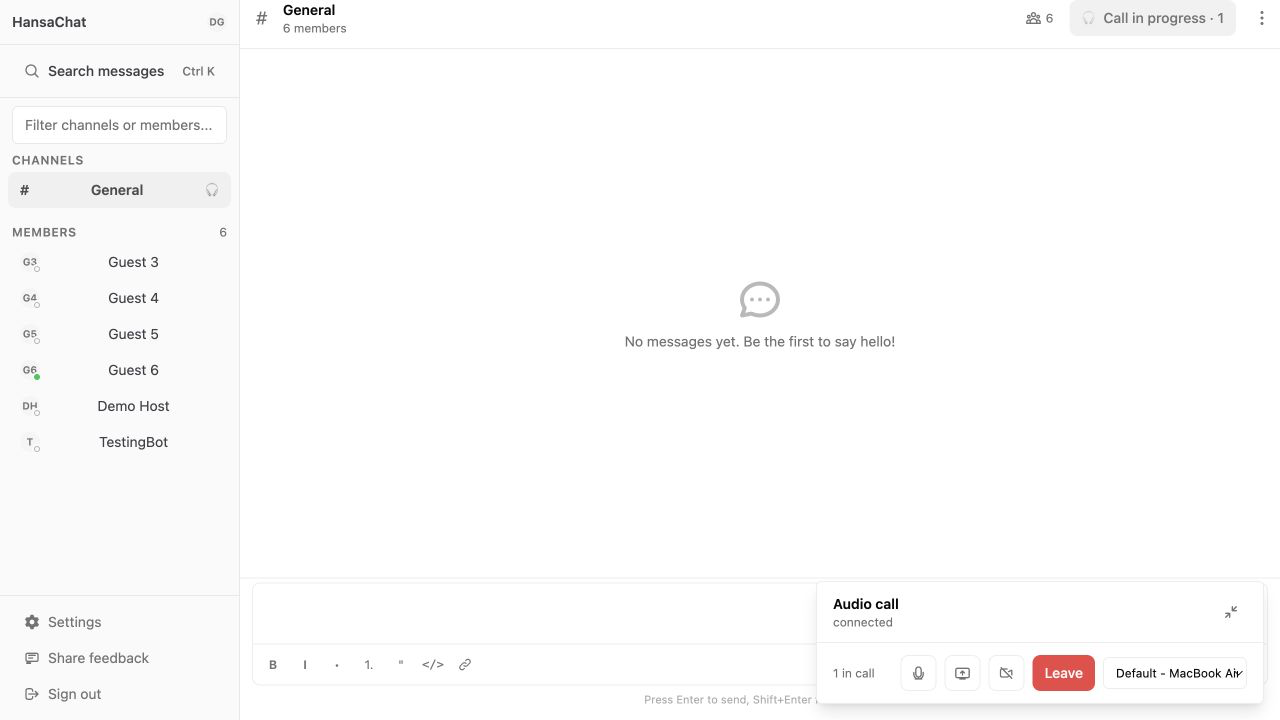
Add video to a channel call
Channel calls start as audio calls. Choose Turn camera on when you want other people in the call to see your video.
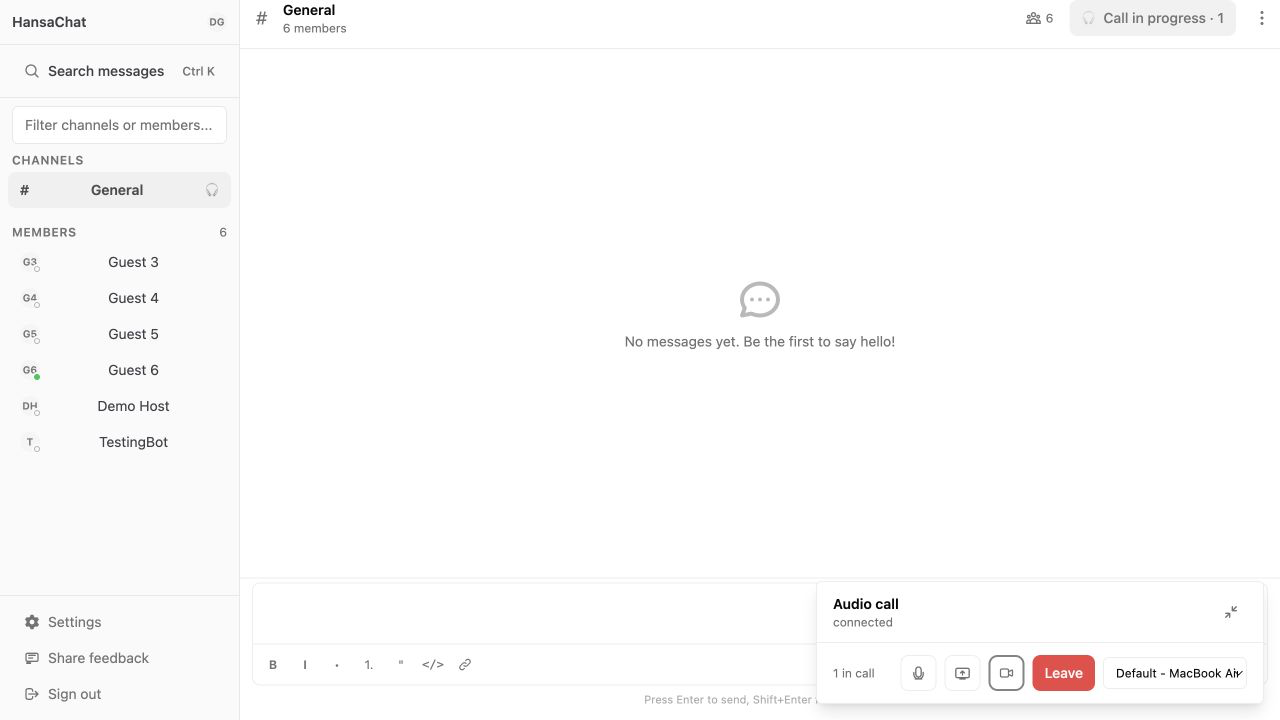
Share your screen
Use Share screen when you want to show an app, browser tab, window, or your full screen.
- Join or start a call.
- Choose Share screen in the call panel.
- Select what you want to share in the browser dialog.
- Confirm the selection.
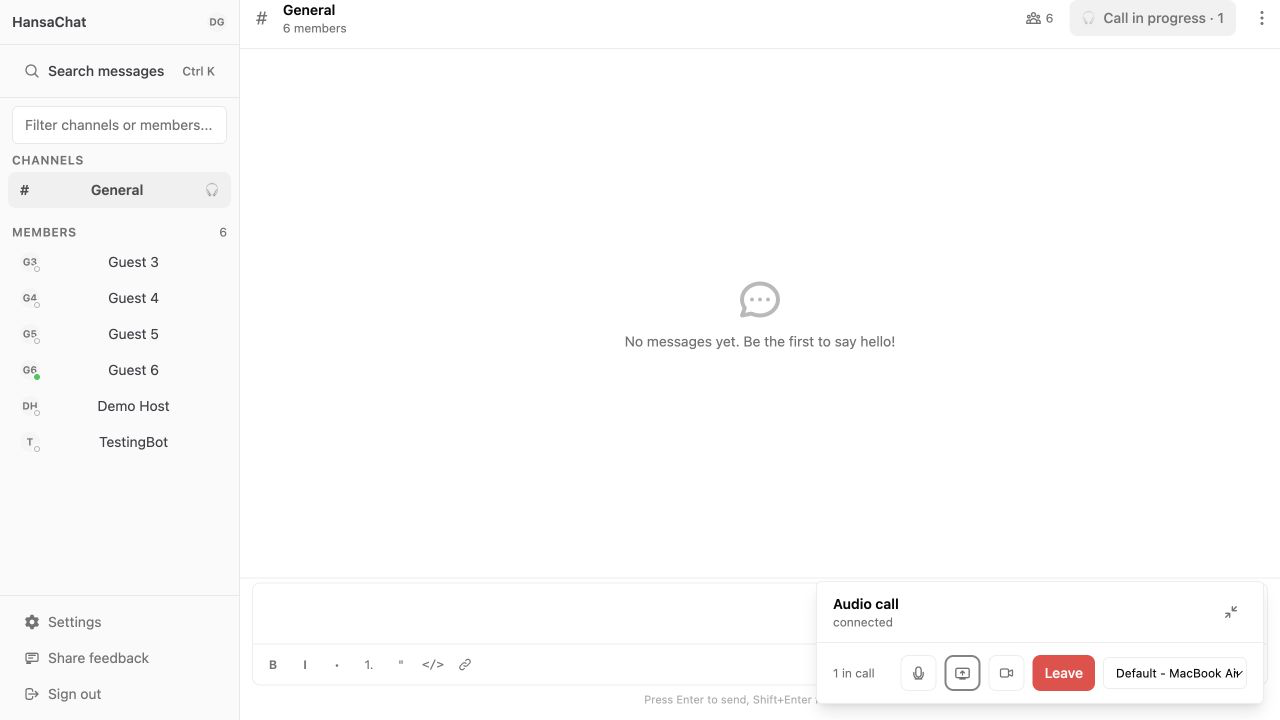
Leave a channel call
Choose Leave when you are finished. Leaving the call does not remove you from the channel.