Single sign-on lets workspace members sign in to HansaChat with Google. Workspace administrators can also control which email domains are allowed for invitations and automatic member provisioning.
Only workspace administrators can change SSO settings.
Google sign-in is available for the HansaChat web app.
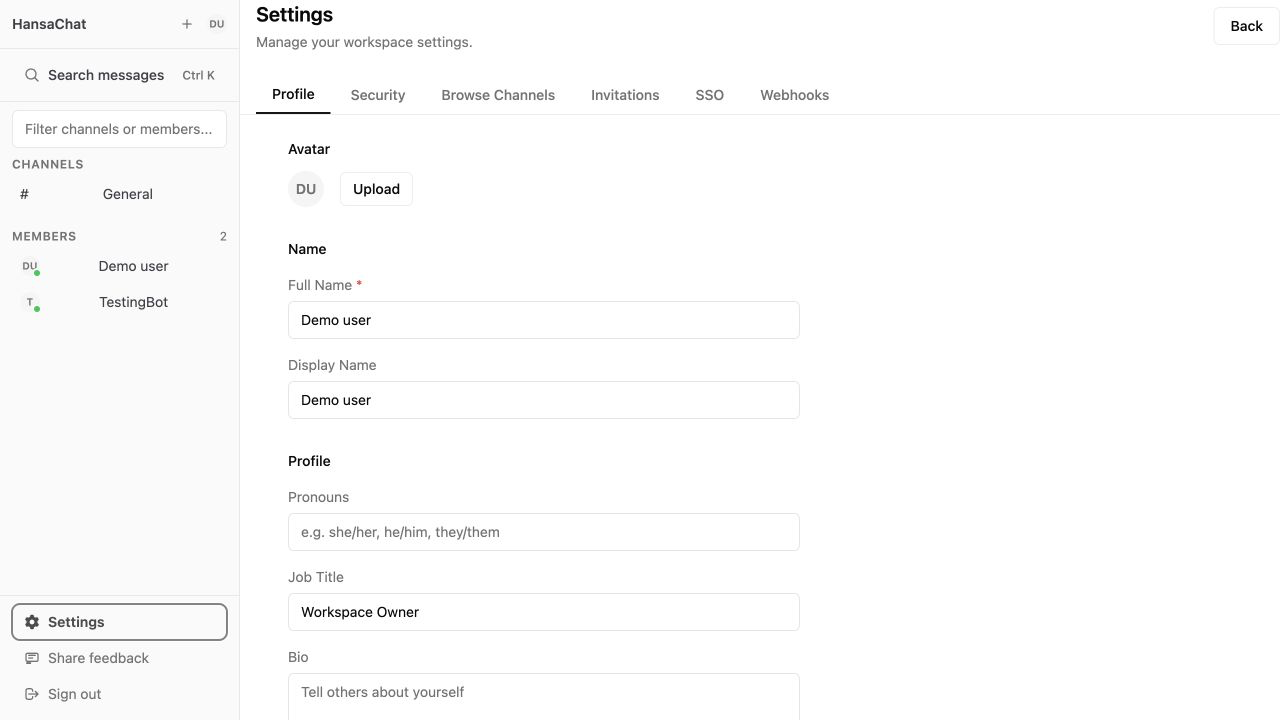
Open SSO settings
- Open Settings from the lower-left sidebar.
- Select SSO.
- Review the Google login, member sign-in, invitation, and domain settings.
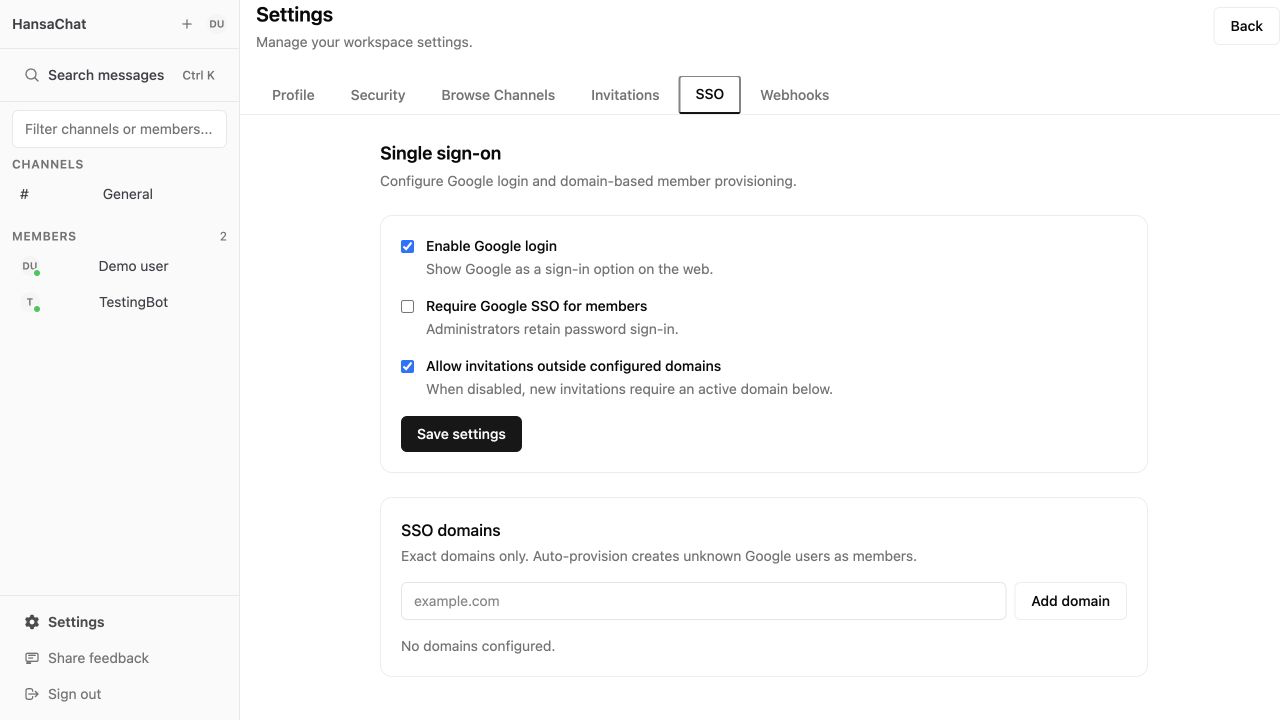
Choose a sign-in policy
Use the top settings to decide how members can sign in:
- Enable Google login shows Google as a sign-in option on the web.
- Require Google SSO for members requires workspace members to use Google sign-in. Administrators can still sign in with a password.
- Allow invitations outside configured domains lets admins invite people whose email domain is not listed under SSO domains.
Choose Save settings after changing these options.
Add an SSO domain
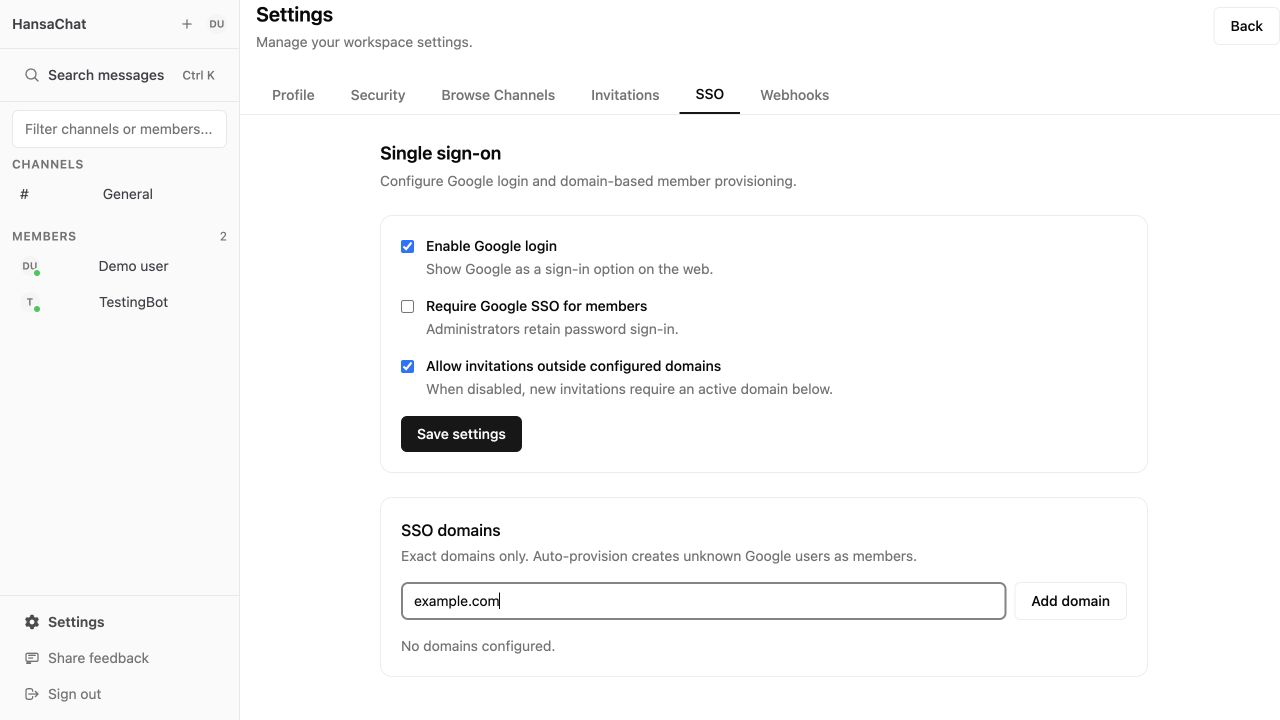
SSO domains are exact email domains, such as example.com. HansaChat normalizes domains by trimming spaces, lowercasing the value, removing a leading @, and removing a trailing dot. Do not enter a URL, wildcard, IP address, or localhost.
An exact domain matches only that domain. Add subdomains separately when they should be allowed.
- Enter the domain in the SSO domains field.
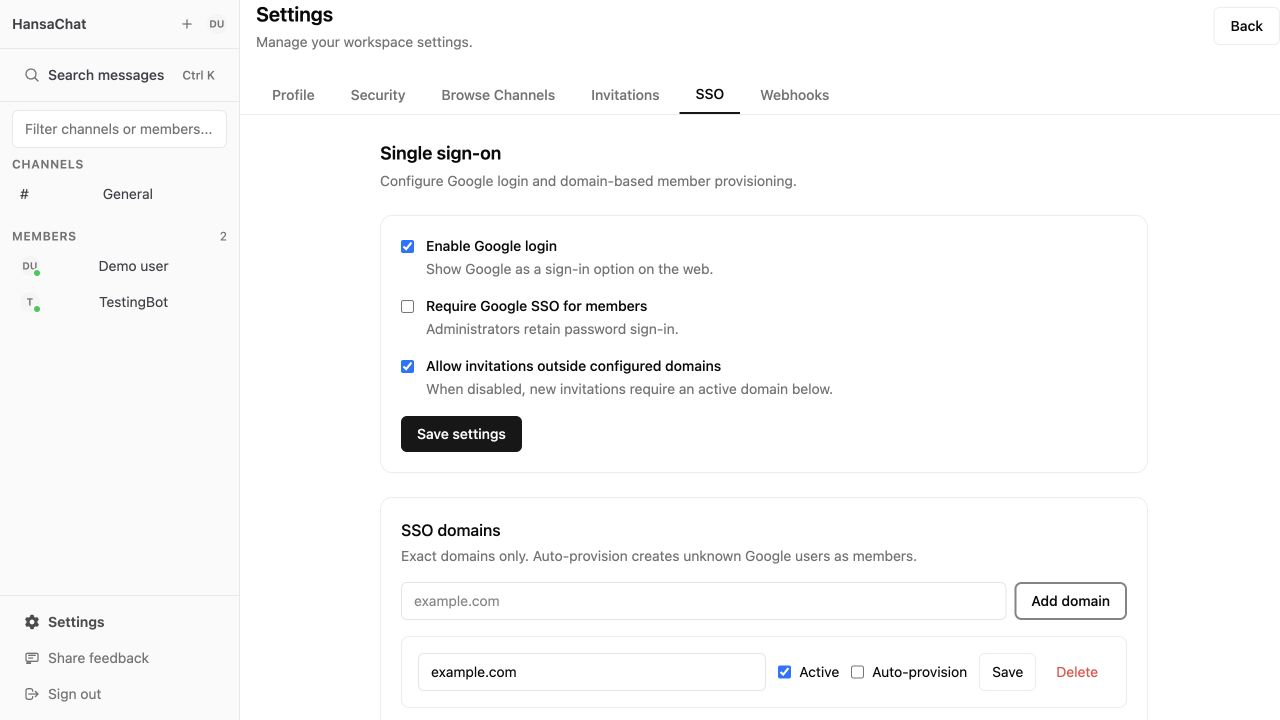
- Choose Add domain.
- Keep Active enabled when the domain should be usable.
- Enable Auto-provision when new Google users from that domain should be created as workspace members automatically.
- Choose Save on the domain row.
How new Google users get access
Existing active workspace users can sign in with Google even if their email domain is not listed.
A new Google user who does not already have a HansaChat account needs one of these:
- a valid invitation for that Google email address.
- an active exact SSO domain with Auto-provision enabled.
Without one of those, HansaChat rejects the Google sign-in and asks the user to contact an administrator.
When to restrict invitations
If your workspace should only include people from approved company domains, add the allowed domains first. Then turn off Allow invitations outside configured domains and choose Save settings.
When this restriction is enabled, new invitations require an active domain in the SSO domains list.
Tips
- Keep at least one administrator account available before requiring Google SSO for members.
- Add company domains before enabling stricter invitation rules.
- Use Auto-provision only for domains where every matching Google account should be allowed to become a workspace member.