Workspaces on paid plans can import a Microsoft Teams message export and rebuild channels and message history in HansaChat — with original timestamps, threads, reactions, and links.
What is imported
- Standard and private channels, with member lists when the export includes them.
- Messages with their original timestamps.
- Reply chains as threads. Replies whose original root is missing from the export become normal messages.
- Reactions (like, heart, laugh, surprised, sad, angry).
- Links and @mentions in message texts.
- Messages from bots and connectors are imported as plain messages attributed to the bot's name.
What is not imported
- Chats and direct messages. The import covers team channels.
- File attachments. Message text is kept; attachment references remain as plain text.
- Edited-message history. The latest version of a message is imported, and the edit is marked.
- Inline text formatting other than links (bold or colored runs are flattened to plain text).
Prepare the archive
Teams exports come from tools built on the Microsoft Graph export API. HansaChat expects a ZIP archive in this layout:
manifest.json
channels.json
users.json            (optional but recommended)
messages/<channel-id>.json
Ask your export tool for this layout, or check that it contains the manifest.json, channels.json, and messages/ entries shown above. The users.json file improves matching: members whose mail address or UPN matches an existing HansaChat member are linked; everyone else is imported as an inactive placeholder profile with no password. Inviting that person later by their email address links the history to their new account.
Run the import
- Open the workspace dashboard on the HansaChat website.
- Find your workspace and choose Import from Slack.
- Select the ZIP archive and choose Import archive.
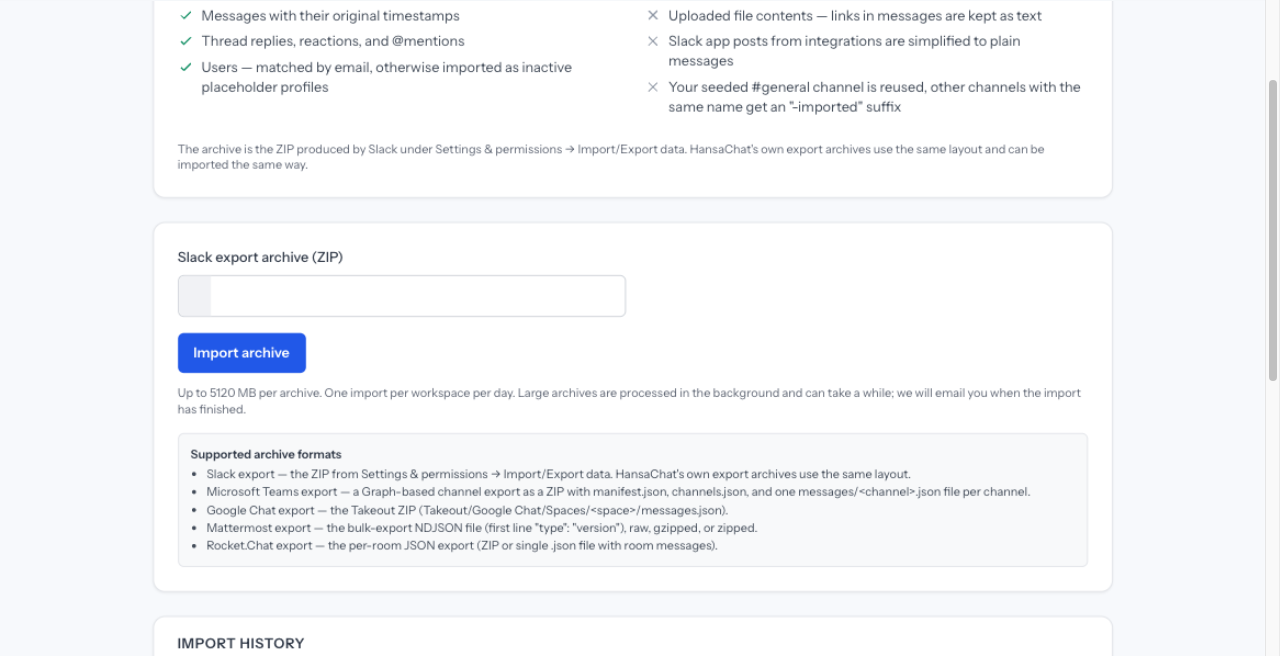
Each workspace can start one import per day. The import runs in the background; the page shows live progress and you receive an email when the import has finished.
How your history lands
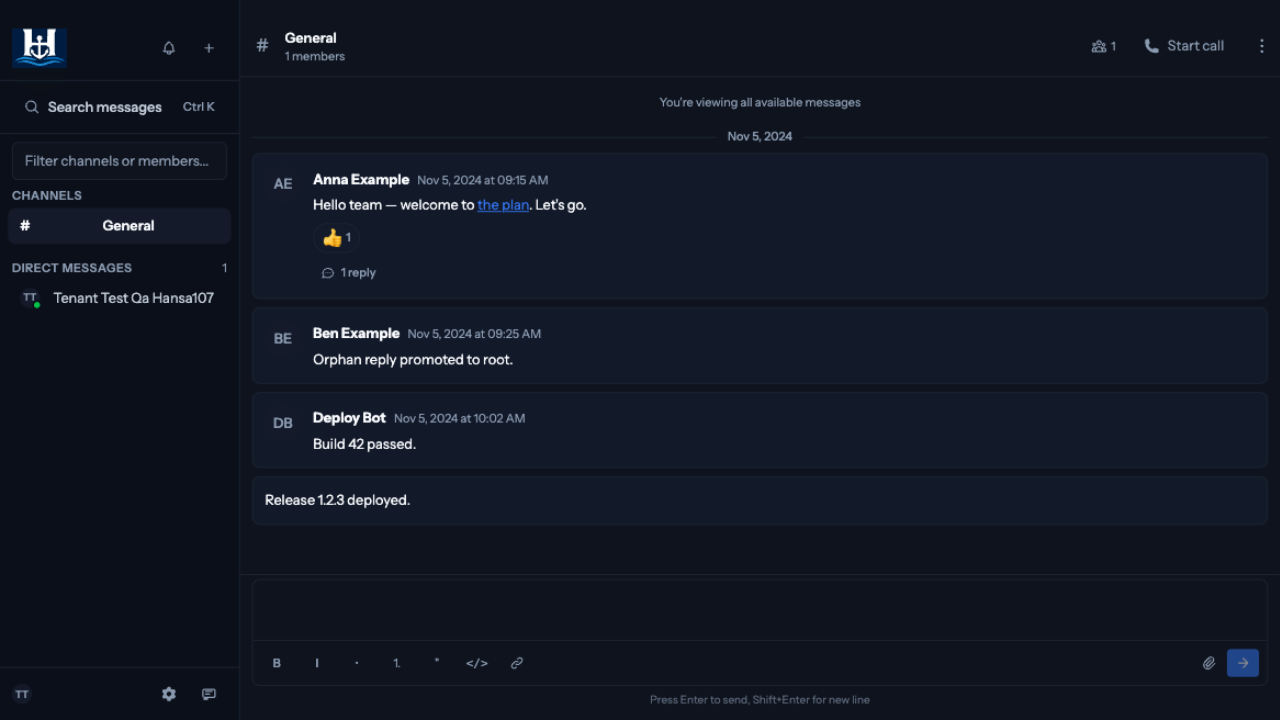
- Your existing #general channel is reused and the imported history is appended to it.
- Other channels are recreated with their original name. If a channel with the same name already exists, the imported one is created with an "-imported" suffix.
- Imported history appears when you reload the workspace. Nothing is pushed to open sessions while the import runs.
- Members who were not linked to an existing account appear as inactive profiles. They never receive email and cannot log in unless you invite them.
Data protection note
The archive contains personal data of your Teams members, such as names, email addresses, and message content. Create and download the export only when you are ready to import, and delete your local copy afterwards. HansaChat deletes the uploaded archive as soon as the import has finished.